
Hard Disk Drive (HDD) – Full Chapter
1. Introduction
A Hard Disk Drive (HDD) is a non-volatile storage device used in computers to store and retrieve digital data. “Non-volatile” means data remains saved even when power is turned off. For decades, HDDs have been the backbone of data storage in desktops, laptops, and servers.
Think of it like a digital warehouse—quietly spinning, stacking bits of your life: files, OS, memories, logs… everything.
2. Basic Structure of HDD
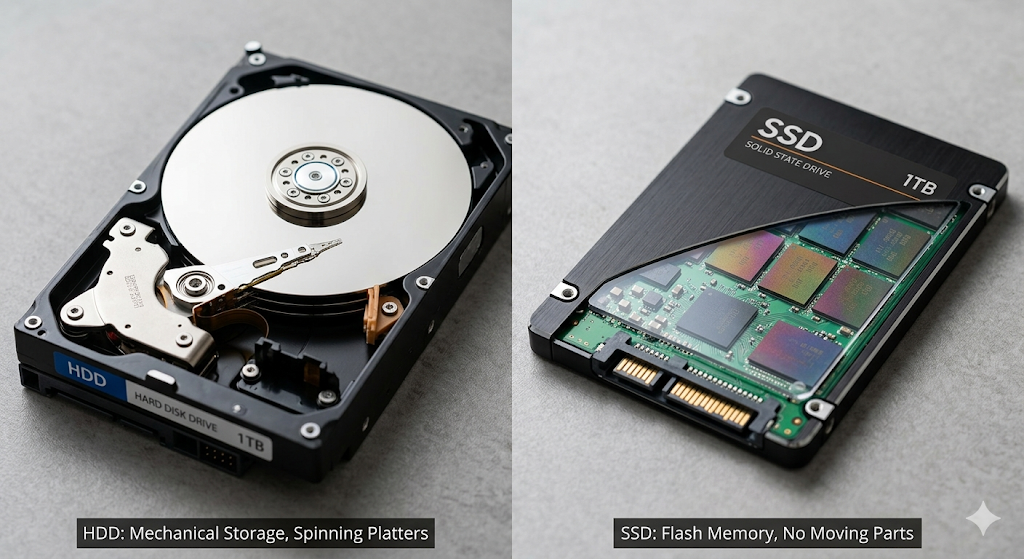
The basic structure of an HDD includes spinning platters coated with magnetic material where data is stored. A spindle rotates these platters at high speed. A read/write head, attached to an actuator arm, moves across the platters to access data. The controller board (PCB) manages communication between the HDD and computer, ensuring data is read and written accurately.
An HDD consists of several mechanical and electronic components:
- Platters: Circular disks coated with magnetic material where data is stored.
- Spindle: Rotates the platters at high speed (e.g., 5400 RPM, 7200 RPM).
- Read/Write Head: Moves over platters to read or write data.
- Actuator Arm: Positions the head accurately over the data tracks.
- Controller Board (PCB): Manages communication between HDD and computer.
3. Working Principle
The working principle of an HDD is based on magnetic storage. Data is stored as magnetic patterns on spinning platters. When data is written, the read/write head magnetizes specific areas to represent binary values (0s and 1s). During reading, the head detects these patterns and converts them into digital signals. The actuator arm moves the head precisely while the platters rotate, allowing fast data access.
HDD works on magnetic storage technology.
- Data is stored as tiny magnetic orientations (0s and 1s) on platters.
- When saving data:
- The write head magnetizes specific areas.
- When reading data:
- The read head detects magnetic patterns and converts them into digital signals.
Simple flow:
- Request comes from OS
- Controller finds location
- Platters spin
- Head moves → reads/writes data
4. Types of HDD
Types of HDD :
HDDs are classified mainly by usage and interface. By usage: Desktop HDDs offer balanced performance, Laptop HDDs are compact and power-efficient, and Enterprise HDDs are built for high reliability and 24/7 operation. By interface: SATA is common for everyday use, SAS is used in servers for higher speed and reliability, while IDE is outdated and rarely used today.
(a) Based on Usage
- Desktop HDD – Standard performance, cost-effective
- Laptop HDD – Smaller (2.5 inch), power-efficient
- Enterprise HDD – High reliability, used in servers
(b) Based on Interface
- SATA (Serial ATA) – Most common
- SAS (Serial Attached SCSI) – High-performance servers
- IDE (Old technology) – Now obsolete
5. Storage Capacity
Storage Capacity refers to the amount of data a hard disk can store. It is measured in units like gigabytes (GB) and terabytes (TB). Higher capacity means more space for files, applications, and system data. Modern HDDs typically range from 500 GB to several TB, making them suitable for storing large volumes of data such as videos, documents, and backups.
HDD capacity has evolved massively:
- Earlier: MB → GB
- Now: TB (Terabytes)
Common sizes:
- 500 GB
- 1 TB
- 2 TB
- 4 TB and above
6. Speed and Performance
HDD speed and performance depend on how fast it can locate and transfer data. RPM controls how quickly the platters spin (higher RPM = faster access). Seek time is how quickly the read/write head reaches data, while latency is the delay waiting for the correct sector. Cache memory helps speed up repeated operations. Overall, higher RPM, lower seek time, and larger cache improve performance.
Key performance factors:
- RPM (Revolutions Per Minute)
- 5400 RPM → slower, quieter
- 7200 RPM → faster, commonly used
- Seek Time
Time taken to move head to correct position - Latency
Delay due to spinning of disk - Cache Memory
Small buffer (e.g., 64MB, 256MB) for faster access
7. Advantages of HDD
HDDs offer large storage at a low cost, making them ideal for storing bulk data like videos, backups, and documents. They are widely available and compatible with most systems. HDDs are reliable for long-term storage when handled properly and provide a cost-effective solution compared to SSDs, especially where high speed is not a priority.
- Cost-effective (cheap per GB)
- High storage capacity
- Good for backup and bulk data
- Long-term storage (if handled properly)
8. Disadvantages of HDD
Hard Disk Drives are slower than modern SSDs because they rely on spinning disks and moving parts. This mechanical design makes them more prone to physical damage, wear, and failure over time. HDDs also generate more heat and noise during operation. They consume slightly more power and are sensitive to shocks or vibrations, which can lead to data loss or hardware issues.
- Slower than SSD
- Mechanical parts → prone to failure
- Generates heat and noise
- Sensitive to shock and vibration
9. HDD vs SSD (Quick Comparison)
When comparing Hard Disk Drives (HDD) and Solid State Drives (SSD), the difference comes down to one thing: old-school mechanics vs modern speed.
An HDD works using spinning disks (platters) and a moving read/write head. Because of these mechanical parts, it takes more time to access data. Every file request means physical movement—like searching a book in a huge library shelf. This makes HDDs slower, especially when opening large files, booting the system, or running heavy applications.
An SSD, on the other hand, has no moving parts. It uses flash memory (like a pen drive but way faster). Data is accessed electronically, almost instantly. That’s why systems with SSDs boot in seconds, apps open quickly, and overall performance feels smooth and responsive.
In terms of speed, SSD clearly wins. But when it comes to cost, HDD still dominates. HDDs are much cheaper per GB, making them ideal for storing large amounts of data like movies, backups, CCTV recordings, or archives. SSDs are more expensive but worth it for performance-critical tasks.
Durability is another key difference. Since HDDs have moving parts, they are more vulnerable to physical damage, drops, or vibrations. SSDs are more durable and reliable in rough conditions because they are fully electronic.
Noise and heat also matter. HDDs produce slight noise due to spinning disks and generate more heat. SSDs are silent and cooler.
So the real-world choice is simple:
- Use SSD for speed (OS, software, daily work)
- Use HDD for storage (bulk data, backup)
In modern systems, the best setup is a combination of both—SSD for performance and HDD for capacity.
| Feature | HDD | SSD |
|---|---|---|
| Speed | Slow | Very Fast |
| Cost | Cheap | Expensive |
| Moving Parts | Yes | No |
| Noise | Yes | Silent |
| Durability | Less | More |
10. Common Problems in HDD
Common problems in a Hard Disk Drive (HDD) mainly arise due to its mechanical nature and long-term usage. Issues like bad sectors occur when parts of the disk surface become unreadable, leading to data loss or file corruption. Slow performance is another common problem, often caused by fragmentation, excessive background processes, or failing hardware. A clicking or grinding noise usually indicates physical damage to internal components like the read/write head. Boot failures may happen if the drive cannot load the operating system properly, while data corruption can occur due to sudden power loss or malware. Over time, heat, wear and tear, and improper handling increase the chances of HDD failure.
- Bad sectors
- Slow performance
- Clicking noise (hardware failure sign)
- Boot failure
- Data corruption
11. Maintenance Tips
Hard Disk Drive maintenance is about protecting both performance and data over time. Physical care comes first—avoid shocks, drops, and vibrations because HDDs have moving parts that can get damaged easily. Proper cooling is equally important; excessive heat reduces lifespan, so ensure good airflow inside the system. On the software side, regularly perform disk cleanup to remove unnecessary files and use defragmentation (for HDD only) to keep data organized and improve access speed. Always keep antivirus protection active to prevent malware that can corrupt data. Most importantly, maintain regular backups, because even a well-maintained HDD can fail unexpectedly.
- Avoid physical shocks
- Keep proper cooling
- Regular disk cleanup & defragmentation
- Use antivirus protection
- Take regular backups
12. Applications of HDD
Hard Disk Drives are widely used for storing large amounts of data in both personal and professional environments. In computers, they are used to store operating systems, software applications, documents, videos, and images. In organizations, HDDs play a major role in servers and data centers, where they handle bulk data storage, backups, and database management. They are also commonly used in surveillance systems (CCTV) to store continuous video recordings. Additionally, external HDDs are used for backup, data transfer, and archiving purposes. Despite the rise of faster SSDs, HDDs remain important due to their affordability and high storage capacity, making them ideal for long-term and large-scale data storage needs.
- Operating system storage
- File storage (videos, photos, documents)
- Servers and data centers
- Backup systems
13. Lifespan of HDD
The lifespan of a Hard Disk Drive (HDD) typically ranges between 3 to 5 years, though it can vary depending on usage patterns, environment, and hardware quality. HDDs that run continuously, such as in servers, may wear out faster due to constant mechanical movement, while drives used occasionally for storage may last longer. Factors like heat, power fluctuations, dust, and physical shocks significantly impact longevity. Over time, mechanical parts like the spindle and read/write head degrade, leading to slower performance or failure. Regular maintenance, proper cooling, and backups can help extend the usable life.
Typical lifespan:
- 3 to 5 years (depends on usage)
Factors affecting life:
- Continuous running
- Heat
- Power fluctuations
- Physical movement
14. Conclusion
HDD is the old warrior of storage—slow, yes, but reliable and cost-effective. In modern systems, SSDs handle speed, while HDDs still rule when it comes to bulk storage.
It’s like this: SSD is the sprinter, HDD is the warehouse keeper. One runs fast, the other remembers everything.